Changing your Facebook name is simple, but you need to follow the right steps and Facebook’s name rules. Whether you recently changed your real name, want to fix a spelling mistake, add your full name, or update your profile after marriage, Facebook gives you an option to edit your name from your account settings.
However, many users face problems because they do not know where the name settings are, what names Facebook allows, or why the change button is not working. Facebook also has a 60-day rule, which means you cannot change your name again immediately after updating it.
In this guide, you will learn how to change your name on Facebook using mobile and desktop, what rules you must follow, why Facebook may reject your name, and what to do if you cannot change it.
What to Know Before Changing Your Facebook Name
Before you update your Facebook name, it is important to understand how Facebook handles profile names. Facebook prefers users to use the name they are known by in everyday life. This helps friends, family, and other users recognise the right person.
Your Facebook profile name is different from your username. Your name appears on your profile, posts, comments, messages, and search results. Your username is usually part of your Facebook profile link.
For example, your display name may be “John Smith,” while your profile link may look like facebook.com/john.smith. Changing your name does not always change your username or profile URL.
You should also remember that Facebook does not allow unlimited name changes. After changing your name, you may need to wait 60 days before changing it again. So, check your spelling carefully before saving the new name.
How to Change Your Name on Facebook Using Mobile App
Most users access Facebook from the mobile app. The process is almost the same on Android and iPhone, but some menu names may look slightly different depending on your app version.
Step 1: Open the Facebook App
First, open the Facebook app on your phone and make sure you are logged in to the correct account. If you manage multiple accounts, check the profile picture or account name before making changes.
Step 2: Go to Menu
Tap your profile picture or the menu icon. On most phones, you will find the menu icon at the top right or bottom right of the app.
After opening the menu, scroll down until you find the settings area.
Step 3: Open Settings and Privacy
Tap “Settings & privacy,” then tap “Settings.” This will open your account settings page.
Facebook may show different sections like Account Center, Profile information, Password and security, Privacy, and Notifications.
Step 4: Go to Account Center
Tap “Account Center.” Facebook now manages many profile settings through Meta Account Center. This is where you can update your personal details for Facebook and other Meta accounts.
Step 5: Open Personal Details
Inside Account Center, tap “Personal details.” Then choose “Profiles” or select the Facebook profile you want to edit.
After selecting your profile, you should see your name and other profile information.
Step 6: Tap Name
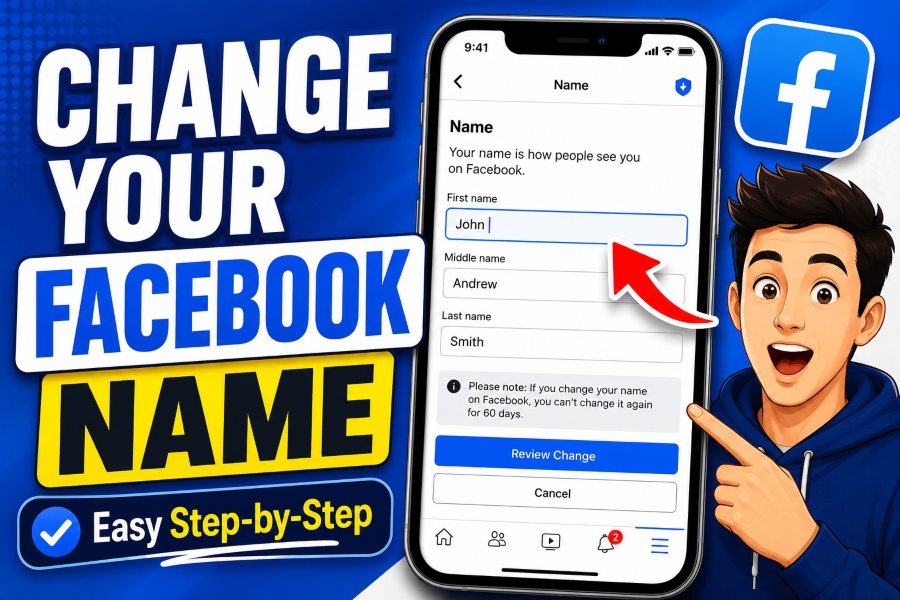
Tap “Name.” Now you can edit your first name, middle name, and last name.
Enter your new name carefully. Avoid symbols, numbers, random capital letters, or words that are not part of your real name.
Step 7: Review and Save
After entering your new name, tap “Review change.” Facebook may show different name display options. Choose the version you prefer.
Then enter your Facebook password if asked and tap “Save changes.”
Your new name should appear on your profile after the update. In some cases, Facebook may review the change before showing it publicly.
How to Change Your Name on Facebook Using Desktop
You can also change your Facebook name from a computer browser. This is useful if you prefer a bigger screen or cannot find the option on mobile.
Step 1: Log In to Facebook
Open Facebook in your browser and log in to your account. Make sure you are using the correct profile.
Step 2: Open Settings
Click your profile picture in the top right corner. Then click “Settings & privacy” and choose “Settings.”
Step 3: Open Account Center
From the settings page, click “Account Center.” This section controls your personal information, profiles, security, and connected Meta accounts.
Step 4: Choose Your Facebook Profile
Click “Profiles,” then select the Facebook profile where you want to change the name.
Step 5: Edit Your Name
Click “Name” and enter your new first name, middle name, and last name. You do not need to fill in the middle name field if you do not use one.
Step 6: Save the New Name
Click “Review change,” choose your display format, enter your password if required, and save the change.
Your Facebook name should now be updated.
Facebook Name Rules You Must Follow
Facebook has name standards that users must follow. If your new name does not follow these rules, Facebook may reject the change or ask you to confirm your identity.
Avoid Symbols and Numbers
Facebook does not usually allow symbols, numbers, or unnecessary punctuation in profile names. For example, names like “John123,” “Sara!!!,” or “M@rk” may be rejected.
Use a clean and natural name format.
Do Not Use Titles
Facebook does not allow titles as part of a personal profile name. This means you should not add words like Dr., Mr., Mrs., Sir, Queen, Professor, or religious titles in the name field.
You can add professional details in your bio, intro, work section, or page instead.
Avoid Random Capital Letters
Names with unusual capitalisation may be rejected. For example, “jOhN sMiTh” may not be accepted. Use normal capitalisation like “John Smith.”
Do Not Use Offensive Words
Facebook does not allow offensive, abusive, or suggestive words in names. Your profile name should look like a real name, not a slogan, phrase, or joke.
Do Not Use Business Names on Personal Profiles
A personal profile should represent a person. If you want to use a business name, brand name, or company name, create or manage a Facebook Page instead.
For example, “Best Shoes Shop” should be a Page name, not a personal profile name.
Why You Cannot Change Your Name on Facebook
Sometimes users try to change their name but Facebook does not allow it. There are several common reasons for this.
You Changed Your Name Recently
The most common reason is the 60-day rule. If you changed your name recently, Facebook may not allow another change until the waiting period is over.
In this case, you usually need to wait before trying again.
Your Name Breaks Facebook Rules
If your name includes numbers, symbols, titles, strange punctuation, or banned words, Facebook may reject it. Try using a simpler version of your real name.
Facebook Needs Identity Confirmation
Sometimes Facebook may ask you to confirm your name. This can happen if your name looks unusual, if someone reports your profile, or if Facebook detects suspicious activity.
You may need to upload an accepted document or follow on-screen instructions.
You Are Editing the Wrong Profile
If you have multiple profiles or manage pages, make sure you are editing your personal Facebook profile, not a Facebook Page or another Meta profile.
Your Account Has Restrictions
If your account has security issues or temporary restrictions, some profile settings may be limited. Fix any account warnings first, then try again.
How to Add a Nickname or Other Name on Facebook
If you do not want to fully change your main Facebook name, you can add another name instead. This is useful for nicknames, maiden names, birth names, alternative spellings, or names people commonly know you by.
Steps to Add Another Name
Go to your profile and open the “About” section. Then find the details section where you can add other names.
Choose the name type, such as nickname or maiden name, enter the name, and decide whether you want it to appear at the top of your profile.
Adding another name can be a better option if you only want friends to recognise you by a nickname without changing your official profile name.
How to Choose the Best Facebook Name
Your Facebook name should be clear, easy to recognise, and close to the name people use to find you.
Use Your Real Everyday Name
Use the name your friends, family, classmates, or customers know you by. This makes it easier for people to search for you and avoid confusion.
Keep It Simple
Avoid extra characters, emojis, or unnecessary words. A simple name looks more professional and is less likely to be rejected.
Check Spelling Before Saving
Because you may need to wait 60 days before changing your name again, check spelling carefully. Make sure your first name and last name are in the correct fields.
Consider Your Professional Image
If you use Facebook for work, business networking, or personal branding, choose a clean and professional name. Your name appears in comments, groups, messages, and search results.
Difference Between Facebook Name and Facebook Username
Many people confuse Facebook name with Facebook username. They are not the same.
Your Facebook name is the display name shown on your profile. Your username is the custom link connected to your profile URL.
For example:
Name: Sarah Khan
Username: facebook.com/sarah.khan
Changing your Facebook name does not always change your username. If you want to update your profile link, you may need to edit your username separately from settings.
Can You Change Your Facebook Page Name
Yes, but changing a Facebook Page name is different from changing a personal profile name. A Page name is used for businesses, brands, creators, communities, and organisations.
To change a Page name, you usually need proper Page access or admin permission. If you do not see the option, you may not have the right access, the Page name may have changed recently, or Facebook may have placed limits on the Page.
For personal name changes, use your profile settings. For brand or business name changes, use your Page settings.
Tips to Avoid Facebook Name Change Problems
Changing your name is easy when you follow the rules. Here are some simple tips to avoid problems.
Use your real or everyday name. Avoid adding numbers, emojis, titles, or business words. Do not change your name too often. Make sure the spelling is correct before saving. Keep your account secure with a strong password. If Facebook asks for confirmation, follow the instructions carefully.
If your name is commonly written in another language or format, use the version that best matches how people know you in everyday life.
What to Do If Facebook Rejects Your Name
If Facebook rejects your new name, do not keep submitting the same version again and again. First, review the name rules.
Remove any special characters, titles, extra punctuation, or unnecessary words. Use a normal first and last name format. If your name is correct but Facebook still rejects it, follow Facebook’s help instructions and provide confirmation if requested.
In some cases, Facebook may accept documents or other proof to confirm the name you use.
Frequently Asked Questions
How Often Can I Change My Name on Facebook
You can usually change your Facebook name once every 60 days. After saving a new name, you may need to wait before changing it again.
Why Is Facebook Asking Me to Confirm My Name
Facebook may ask for confirmation if it needs to verify that your profile name matches the name you use in everyday life. This can happen because of account activity, reports, or name policy checks.
Can I Use a Nickname on Facebook
Yes, you can add a nickname or another name to your profile. However, your main profile name should still follow Facebook’s name standards.
Can I Change My Facebook Name Without Password
Facebook may ask for your password before saving name changes. This is a security step to protect your account.
Will My Friends Be Notified When I Change My Name
Facebook may not send a direct notification to all friends, but your new name will appear on your profile, posts, comments, and messages.
Can I Change My Facebook Name Before 60 Days
Usually, you cannot change it again before 60 days. If there is a serious issue, you can check Facebook Help options, but approval is not guaranteed.
Final Thoughts
Learning how to change your name on Facebook is useful when you want to update your profile, fix a mistake, or make your account easier to recognise. The process is simple from both mobile and desktop, but you must follow Facebook’s name rules.
Before saving your new name, check the spelling, avoid symbols or titles, and make sure the name matches how people know you. Since Facebook limits frequent name changes, it is better to choose the right name the first time.
A clean and correct Facebook name helps people find you, trust your profile, and connect with you easily.