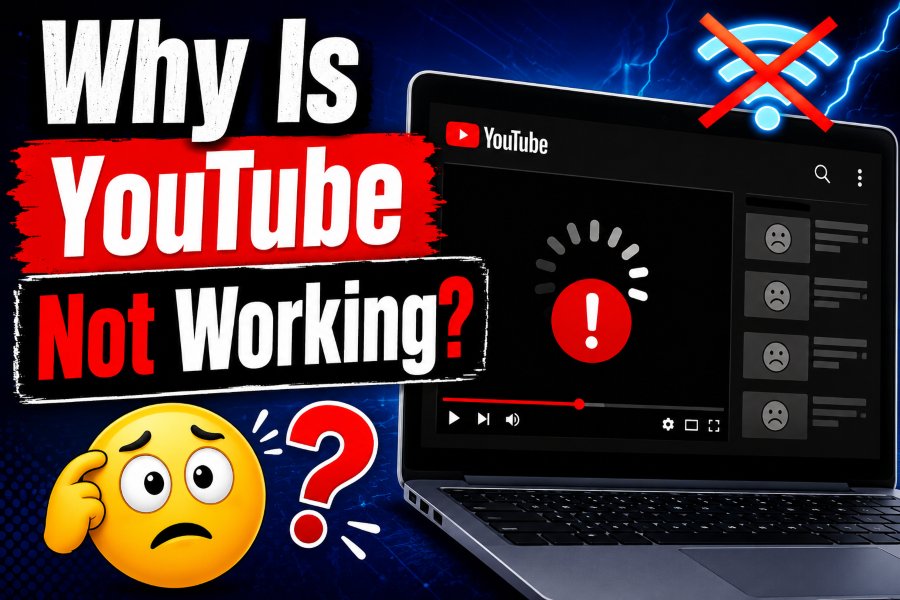
YouTube is one of the most used video platforms in the world. People use it every day to watch tutorials, music videos, podcasts, news, live streams, shorts, and entertainment content. So when YouTube suddenly stops working, it can feel frustrating.
You may open the app and see a blank screen. A video may keep buffering. YouTube may show an error message. Sometimes the app crashes, comments do not load, sound does not work, or YouTube works on one device but not another.
If you are asking, why is YouTube not working, there can be many possible reasons. The issue may come from your internet connection, YouTube app, browser, device settings, cache files, outdated software, DNS problems, or even a temporary YouTube server issue.
The good news is that most YouTube problems are easy to fix. You usually do not need advanced technical knowledge. In this guide, we will explain the most common reasons YouTube is not working and show simple solutions for mobile, desktop, smart TV, and browser users.
Why Is YouTube Not Working Today
YouTube may not work for different reasons depending on your device and situation. Sometimes the issue is only on your side. Other times, YouTube may be down for many users at the same time.
Here are the most common reasons:
- Weak or unstable internet connection
- YouTube app cache problem
- Outdated YouTube app
- Browser cache or cookie issue
- VPN or proxy conflict
- Device software problem
- YouTube server outage
- Restricted mode or parental control
- Incorrect date and time settings
- Network DNS issue
- Smart TV app glitch
- Ad blocker or browser extension problem
Before trying advanced fixes, always check whether your internet is working properly. Many YouTube problems happen because the connection is too slow or unstable.
Common YouTube Problems Users Face
YouTube can stop working in different ways. Knowing the exact problem helps you find the right fix faster.
YouTube Videos Are Not Loading
Sometimes YouTube opens, but videos do not play. You may see a spinning loading circle or a black video player. This often happens because of slow internet, browser cache, app bugs, or server problems.
YouTube Keeps Buffering
Buffering means the video stops again and again while loading. This usually happens when your internet speed is low, your Wi-Fi signal is weak, or too many devices are using the same network.
YouTube App Keeps Crashing
If the YouTube app closes by itself, the app may be outdated or corrupted. It can also happen when your phone storage is low or the app cache has too many old files.
YouTube Shows No Internet Connection
Sometimes YouTube says there is no connection even when other apps work. This can happen because of app permissions, DNS errors, VPN issues, or temporary network problems.
YouTube Is Not Working on Smart TV
Smart TVs often face YouTube issues because of outdated apps, old TV firmware, weak Wi-Fi, or temporary app bugs. Restarting the TV or reinstalling the app often fixes the issue.
YouTube Sound Is Not Working
If the video plays but there is no sound, the problem may be with device volume, Bluetooth connection, browser tab mute settings, or audio output settings.
Check If YouTube Is Down
Before changing your device settings, check whether YouTube is down for everyone. Sometimes YouTube has temporary server problems. In that case, the issue is not your phone, computer, or internet.
You can check YouTube’s status by visiting outage tracking websites, checking social media, or trying YouTube on another device. If YouTube is down globally, you only need to wait until the service comes back.
However, if YouTube works for other people but not for you, the problem is likely on your device, app, browser, or network.
Fix Your Internet Connection
A weak internet connection is one of the biggest reasons YouTube does not work. Even if your device says it is connected to Wi-Fi, the connection may still be unstable.
Try these steps:
Restart your Wi-Fi router. Turn it off, wait 30 seconds, and turn it back on. This can fix many network issues.
Move closer to the router if you are using Wi-Fi. Weak signal can cause buffering and loading problems.
Switch from Wi-Fi to mobile data or from mobile data to Wi-Fi. This helps you know if the problem is with one network only.
Run a speed test. YouTube needs a stable connection to play videos smoothly. Higher video quality needs more speed.
Lower the video quality. If 1080p or 4K is buffering, try 720p or 480p.
If YouTube works after switching networks, your original internet connection was likely the problem.
Restart Your Device
Restarting your device sounds simple, but it can solve many YouTube problems. Phones, laptops, tablets, and smart TVs can develop temporary background errors. A restart clears these small system issues.
If YouTube is not working on your phone, restart the phone and open YouTube again. If YouTube is not working on your computer, restart your browser or reboot the computer. If YouTube is not working on your smart TV, unplug the TV from power for one minute, then plug it back in.
This simple step often fixes freezing, crashing, loading, and playback errors.
Update the YouTube App
An outdated YouTube app can cause many problems. YouTube regularly updates its app to fix bugs, improve performance, and support new features. If you are using an old version, the app may stop working correctly.
To fix this, open the Google Play Store or Apple App Store. Search for YouTube. If you see an update button, tap it. After updating, reopen the app and check if the problem is fixed.
If you are using YouTube on a smart TV, open your TV app store and check for YouTube updates. You should also update your TV software if an update is available.
Clear YouTube App Cache
Cache files help apps load faster, but sometimes old cache files become corrupted. When this happens, YouTube may freeze, crash, or fail to load videos.
On Android, you can clear the YouTube cache by going to Settings, then Apps, then YouTube, then Storage, and tapping Clear Cache.
On iPhone, there is no direct clear cache button for YouTube. You can delete the app and reinstall it. This removes old app data and gives you a fresh version.
After clearing cache or reinstalling the app, sign in again and check whether YouTube works.
Check Browser Cache and Cookies
If YouTube is not working on Chrome, Firefox, Edge, or Safari, your browser cache and cookies may be causing the issue.
Old browser data can stop YouTube from loading properly. It can also create sign-in problems, playback errors, and comment loading issues.
To fix it, clear your browser cache and cookies. Then close the browser and open it again. After that, visit YouTube and try playing a video.
You can also try opening YouTube in incognito or private mode. If YouTube works there, a browser extension, cookie, or cache file is likely causing the issue.
Disable Browser Extensions
Some browser extensions can block YouTube features. Ad blockers, privacy extensions, script blockers, download managers, and VPN extensions may stop videos from loading.
If YouTube is not working in your browser, disable extensions one by one. Start with ad blockers and privacy tools. After disabling an extension, refresh YouTube and check if it works.
If YouTube starts working after disabling an extension, that extension was likely the problem. You can keep it disabled for YouTube or change its settings.
Turn Off VPN or Proxy
VPNs and proxies can sometimes cause YouTube problems. YouTube may load slowly, show region errors, or fail to play videos when the VPN server is unstable.
Turn off your VPN or proxy and try YouTube again. If YouTube starts working, the problem is with the VPN connection. You can switch to another VPN server or use YouTube without VPN.
This is especially common when watching region-restricted videos or live streams.
Check Date and Time Settings
Incorrect date and time settings can cause YouTube and other apps to fail. Many online services need the correct time to connect securely.
Go to your device settings and turn on automatic date and time. After that, restart your device and open YouTube again.
This fix is simple but useful, especially for older phones, tablets, and smart TVs.
Fix YouTube Not Working on Android
If YouTube is not working on Android, try these steps:
First, check your internet connection. Then restart your phone. Next, update the YouTube app from the Play Store. If that does not work, clear the YouTube app cache.
You can also force stop the app. Go to Settings, Apps, YouTube, and tap Force Stop. Then open the app again.
If the issue continues, uninstall YouTube updates and reinstall them. Some Android devices come with YouTube as a system app, so you may not be able to fully uninstall it. But you can remove updates and update it again.
Also make sure Google Play Services is updated because YouTube depends on Google services to work properly.
Fix YouTube Not Working on iPhone
If YouTube is not working on iPhone, start by closing the app completely and opening it again. Then check your Wi-Fi or mobile data.
Go to the App Store and update YouTube. If it still does not work, delete the YouTube app and reinstall it.
Also check whether YouTube has permission to use mobile data. Go to iPhone Settings, find YouTube, and make sure mobile data is enabled.
If videos are not playing on Safari, clear Safari history and website data from settings. You can also try using the YouTube app instead of the browser.
Fix YouTube Not Working on Chrome
Google Chrome is one of the most common browsers used for YouTube. If YouTube is not working on Chrome, first update Chrome to the latest version.
Then clear cache and cookies. Disable extensions, especially ad blockers and privacy extensions. You can also turn off hardware acceleration from Chrome settings if videos show a black screen.
To test the issue, open YouTube in incognito mode. If it works there, the problem is probably caused by an extension or browser data.
If nothing works, reset Chrome settings or try another browser to check whether the problem is only with Chrome.
Fix YouTube Not Working on Smart TV
YouTube problems on smart TVs are common. The app may freeze, show a black screen, or refuse to open.
Start by restarting your TV. Do not only turn it off with the remote. Unplug it from the power outlet for one minute, then plug it back in.
Next, check your Wi-Fi connection. If possible, connect your TV with an Ethernet cable for a stronger connection.
Update the YouTube app and your TV firmware. If YouTube still does not work, delete and reinstall the app.
If your smart TV is very old, the YouTube app may no longer be fully supported. In that case, using a streaming device may be a better option.
Fix YouTube Sound Problems
If YouTube video plays but there is no sound, check your device volume first. Make sure the video player is not muted.
If you are using a browser, check whether the tab is muted. Right-click the browser tab and see if there is an option to unmute it.
Also check Bluetooth. Your phone or computer may be connected to wireless headphones or speakers without you noticing.
On computers, check the audio output device. Make sure sound is coming from the correct speaker or headphone.
If sound does not work only on one video, the issue may be with that specific video, not your device.
Why YouTube Shorts Are Not Working
YouTube Shorts may stop working because of app bugs, slow internet, cache problems, or outdated app versions.
To fix YouTube Shorts, update the app, clear cache, restart your phone, and check your internet. You can also log out of your YouTube account and log back in.
If Shorts are missing from your app, the feature may be temporarily unavailable in your region or there may be a YouTube app issue.
Why YouTube Comments Are Not Loading
YouTube comments may not load because of internet problems, browser extensions, restricted mode, or account settings.
First, refresh the video page. Then check if comments are turned off for that video. Some creators disable comments manually.
If comments do not load on any video, clear cache, disable extensions, or try another browser. On mobile, update the app and restart your phone.
Restricted Mode can also hide some comments. Turn it off if you do not need it.
Why YouTube Is Slow
YouTube can feel slow when your internet is weak, your device is overloaded, or your browser has too much stored data.
Close unused apps and browser tabs. Clear cache. Restart your device. Lower video quality if your connection is slow.
If YouTube is slow only during certain times, your internet provider may be busy during peak hours. In that case, using a different network may help.
When Should You Reinstall YouTube
You should reinstall YouTube if the app keeps crashing, videos do not load after clearing cache, or the app behaves strangely after an update.
Reinstalling gives you a fresh app version. It removes broken files and resets app data. On iPhone, reinstalling is one of the best ways to clear YouTube app cache.
After reinstalling, sign back into your Google account and test the app again.
How to Prevent YouTube Problems
You cannot stop every YouTube issue, but you can reduce problems by keeping your app, browser, and device updated.
Use a stable internet connection. Clear cache from time to time. Avoid too many browser extensions. Restart your device regularly. Keep enough free storage on your phone.
For smart TVs, update the TV software whenever available. If your TV is old, consider using a modern streaming device for better performance.
Final Thoughts
If you are wondering why is YouTube not working, the problem can come from many places. It may be your internet connection, YouTube app, browser, device settings, VPN, cache files, or a temporary YouTube server issue.
The best way to fix it is to start with simple steps. Check your internet, restart your device, update the app, clear cache, and try another browser or network. Most YouTube problems can be solved with these basic fixes.
If YouTube is down for everyone, you may need to wait until YouTube fixes the issue. But if the problem is only on your device, the solutions in this guide should help you get YouTube working again.
FAQs
Why is YouTube not working on my phone
YouTube may not work on your phone because of slow internet, outdated app version, cache problems, low storage, or temporary app bugs. Restart your phone, update YouTube, and clear the app cache.
Why is YouTube not loading videos
YouTube videos may not load because your internet is unstable, your browser cache is corrupted, or YouTube has a temporary server issue. Try refreshing the page, clearing cache, or changing networks.
Why does YouTube keep buffering
YouTube keeps buffering when your connection is too slow or unstable. Lower the video quality, restart your router, move closer to Wi-Fi, or switch to another network.
Why is YouTube not working on Chrome
YouTube may not work on Chrome because of old cache, cookies, extensions, outdated browser version, or hardware acceleration issues. Clear browser data and disable extensions to test.
Why is YouTube not working on my smart TV
YouTube may not work on smart TV because of outdated app software, weak Wi-Fi, old TV firmware, or app glitches. Restart the TV, update the app, and reinstall YouTube if needed.
Why is YouTube showing a black screen
A black screen on YouTube can happen because of browser extensions, graphics driver issues, cache problems, or internet errors. Try disabling extensions and clearing browser cache.
Why is YouTube sound not working
YouTube sound may not work because your device is muted, the browser tab is muted, Bluetooth is connected, or the wrong audio output is selected. Check all volume and audio settings.
Is YouTube down right now
YouTube can sometimes go down temporarily. Check outage websites or social media to see if many users are reporting the same issue. If YouTube is down, wait until service returns.